
Split PDF
Split a PDF document into separate files.
Type to search tools. Use the up and down arrow keys to move through results, Enter to open a result, and Escape to clear the search.
Split a PDF document into separate files.
Related tools
Ready tools are shown first.
PDF Compressor
Choose a target reduction and make PDF files smaller directly in your browser.
PDF to JPG
Convert PDF pages to JPG images directly in your browser.
PDF to PNG
Convert PDF pages to PNG images directly in your browser.
PDF to Images
Convert PDF pages to PNG or JPG images online.
PDF to Text
Extract selectable text from PDF files directly in your browser.
PDF to Word
Convert text-based PDF files to editable Word documents directly in your browser.
Tool guide
Split PDF Online
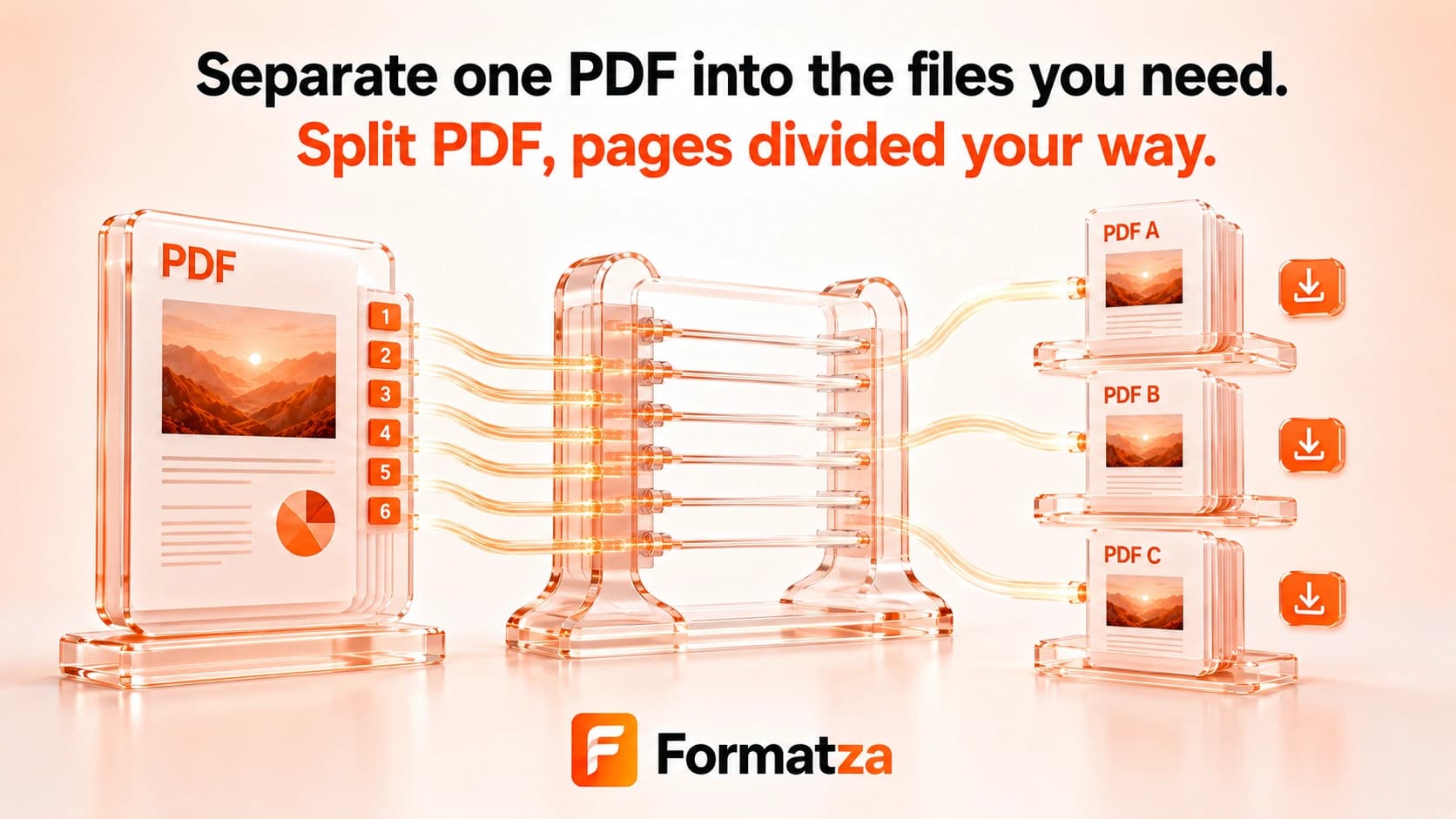
Split one PDF by turning every page into a separate PDF or by copying selected pages into one new PDF. Choose all pages, one range, or individual pages where the selected-pages mode applies.
Steps
How it works
- Choose one PDF and wait for its page count.
- Select either a chosen-page output or one PDF per page.
- For a chosen-page output, select all pages, one range, or individual pages.
- Split the PDF in your browser.
- Download each generated PDF separately.
Highlights
Key features
- Processes one source PDF at a time.
- Can create one separate PDF for every source page.
- Can combine selected pages into one split PDF.
- Supports all-page, single-range, and individual-page selection.
- Uses page-numbered filenames for every-page outputs.
Use cases
Common uses
- Extract selected pages into a smaller PDF.
- Turn every page into its own PDF file.
- Save one section from a longer document.
- Prepare individual pages for separate sharing.
Notes
Limitations to know
- Multiple source PDFs, custom multi-range output groups, odd/even splitting, and keep/exclude modes are not available.
- Every-page outputs are downloaded individually; the tool does not provide a ZIP download.
- This tool copies selected pages rather than offering a dedicated remove-pages workflow.
- Bookmarks, metadata, forms, annotations, internal links, and page labels may not be preserved fully.
- Password-protected PDFs may fail, and resaving can invalidate digital signatures.
FAQ
Frequently asked questions
Can every page become a separate PDF?
Yes. Choose the option to split every page into separate PDF files.
Can I select a page range?
Yes. In selected-page mode, choose Range and enter one valid start and end range.
Can I create several custom page groups at once?
No. Selected pages are combined into one output; multiple custom output groups are not supported.
Are split PDFs downloaded as a ZIP?
No. Generated PDF files are available as individual downloads.
Can it split a password-protected PDF?
Locked PDFs should be unlocked first.
How is this different from Delete PDF Pages?
Split PDF extracts pages into new outputs. Delete PDF Pages keeps the unselected pages and removes the pages you specify.