
Excel to HTML
Convert Excel sheets to HTML tables.
Type to search tools. Use the up and down arrow keys to move through results, Enter to open a result, and Escape to clear the search.
Convert Excel sheets to HTML tables.
Related tools
Ready tools are shown first.
Excel to CSV
Convert Excel spreadsheets to CSV files.
CSV to Excel
Convert CSV files to Excel spreadsheets.
Excel to JSON
Convert Excel spreadsheets to JSON data.
JSON to Excel
Convert JSON data to Excel spreadsheets.
Excel to HTML
Convert Excel sheets to HTML tables.
HTML Table to Excel
Convert HTML tables to Excel spreadsheets.
Tool guide
Free Online Excel to HTML Table Converter
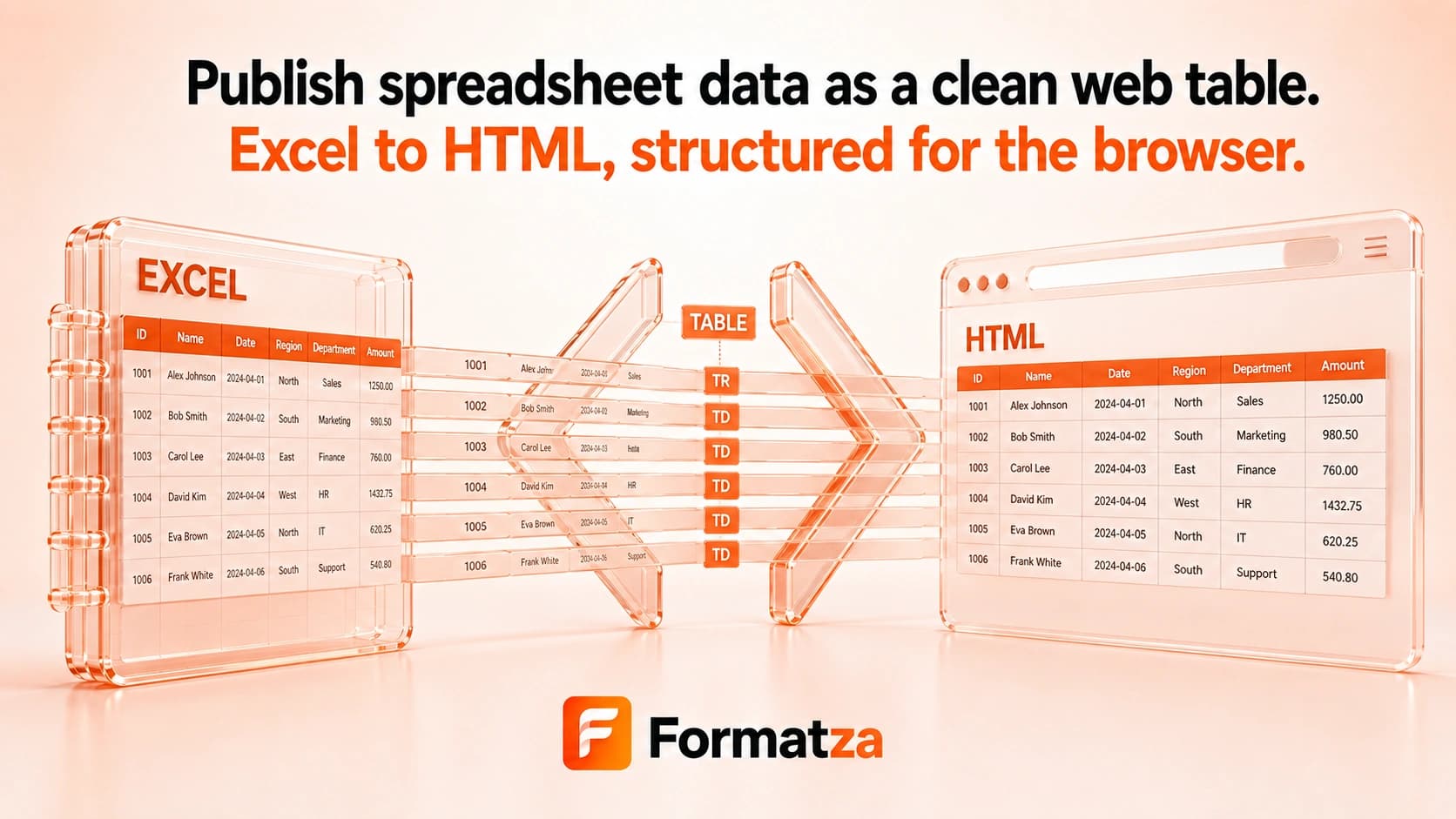
Convert one selected XLS or XLSX worksheet into HTML table markup directly in your browser. The output represents supported worksheet cells as a table for reuse in a webpage, while advanced workbook presentation may be simplified.
Steps
How it works
- Choose one XLS or XLSX workbook.
- Select the worksheet and review its table preview.
- Generate HTML markup from the selected sheet.
- Review, copy, or download the resulting .html file.
Highlights
Key features
- Lets you select one worksheet from the uploaded workbook.
- Uses the spreadsheet library's HTML table generator.
- Escapes supported cell content as part of generated HTML markup.
- Provides a copy action and an HTML file download.
- Shows the worksheet rows before conversion.
Use cases
Common uses
- Create a basic HTML table from worksheet data.
- Prepare spreadsheet rows for a website prototype.
- Copy tabular content into an HTML editing workflow.
- Publish a simplified worksheet table where advanced Excel behavior is unnecessary.
Notes
Limitations to know
- Only one workbook and one selected sheet are converted; batch, bulk, and multi-sheet export are unavailable.
- The output is generated table markup, not a pixel-perfect reproduction or a responsive website design.
- Charts, images, comments, macros, scripts, and advanced workbook objects are not exported as equivalent web features.
- Styles, merged-cell behavior, number formats, and formulas may be simplified or represented by available cell output.
- The tool does not provide CSS customization or external asset packaging.
FAQ
Frequently asked questions
Does the output contain an HTML table?
Yes. The selected worksheet is passed to the spreadsheet library's HTML table generator and can be downloaded as an .html file.
Can I choose the worksheet?
Yes. The first sheet is selected initially, and you can choose another before conversion.
Will Excel styling look identical in a browser?
No. The goal is table markup, and advanced Excel styling or layout may be simplified or omitted.
Are charts and images included?
They are not exported as equivalent HTML content by this workflow.
Can I convert multiple workbooks at once?
No. One workbook and one selected sheet are handled per run.