PDF to Images
Convert PDF pages to PNG or JPG images online.
Type to search tools. Use the up and down arrow keys to move through results, Enter to open a result, and Escape to clear the search.
Convert PDF pages to PNG or JPG images online.
Related tools
Ready tools are shown first.
PDF Compressor
Choose a target reduction and make PDF files smaller directly in your browser.
PDF to JPG
Convert PDF pages to JPG images directly in your browser.
PDF to PNG
Convert PDF pages to PNG images directly in your browser.
PDF to Images
Convert PDF pages to PNG or JPG images online.
PDF to Text
Extract selectable text from PDF files directly in your browser.
PDF to Word
Convert text-based PDF files to editable Word documents directly in your browser.
Tool guide
Free PDF to Images Converter
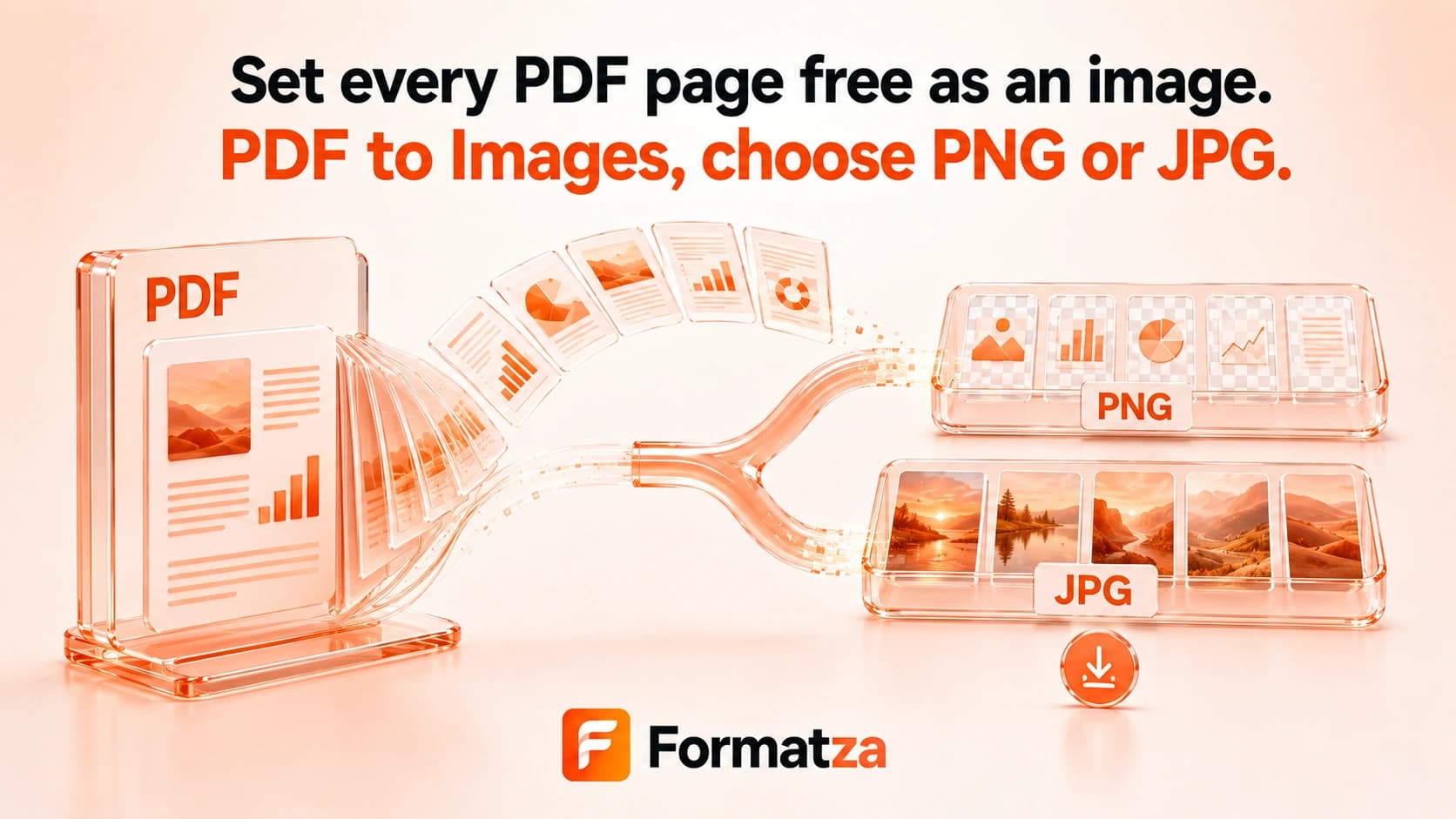
Convert selected PDF pages into JPG or PNG image files directly in your browser. Process one PDF or a batch, choose the output format and render scale, and download the generated page images individually or in ZIP parts.
Steps
How it works
- Upload one or more PDF documents, up to 500 selected files.
- Choose JPG or PNG output.
- Select all pages, one page range, or individual page numbers.
- Choose the render scale and, for JPG, the image quality.
- Convert and download the generated page images.
Highlights
Key features
- Switches between JPG and PNG output in one tool.
- Renders each selected PDF page as a separate image.
- Supports multiple PDFs and sequential batch processing.
- Offers 1x, 1.5x, and 2x rendering.
- Shows a JPG quality control when JPG is selected.
- Provides individual downloads plus full or smaller ZIP options where available.
Use cases
Common uses
- Choose JPG for broadly compatible, potentially smaller page previews.
- Choose PNG for losslessly compressed rendered pixels.
- Convert selected pages from several PDFs in one batch.
- Create page images for presentations, previews, or sharing.
Notes
Limitations to know
- The tool renders whole pages and does not extract original images stored inside the PDF.
- PDF text, vectors, links, and interactive elements become static image pixels.
- JPG does not support transparency, while PNG transparency still depends on PDF rendering behavior.
- Large page counts, higher scales, and ZIP creation can use substantial browser memory.
- Password-protected, corrupt, or unsupported PDFs may not load.
FAQ
Frequently asked questions
Which image formats are supported?
You can select JPG or PNG. JPG also exposes a quality control, while PNG uses lossless pixel compression.
How is this different from PDF to JPG?
PDF to Images lets you choose JPG or PNG. The dedicated PDF to JPG tool keeps its output format fixed to JPG.
Does it extract images stored inside a PDF?
No. It renders complete selected pages into new image files.
Can only selected pages be converted?
Yes. Choose all pages, one range, or specific individual page numbers.
Can I process multiple PDFs?
Yes. The batch accepts up to 500 selected PDF files and processes readable files sequentially.
How are generated files downloaded?
Outputs can be downloaded one at a time, as one ZIP when reliable, or in smaller ZIP groups if a single archive is unavailable.