Delete PDF Pages
Remove selected pages from a PDF document.
Type to search tools. Use the up and down arrow keys to move through results, Enter to open a result, and Escape to clear the search.
Remove selected pages from a PDF document.
Related tools
Ready tools are shown first.
PDF Compressor
Choose a target reduction and make PDF files smaller directly in your browser.
PDF to JPG
Convert PDF pages to JPG images directly in your browser.
PDF to PNG
Convert PDF pages to PNG images directly in your browser.
PDF to Images
Convert PDF pages to PNG or JPG images online.
PDF to Text
Extract selectable text from PDF files directly in your browser.
PDF to Word
Convert text-based PDF files to editable Word documents directly in your browser.
Tool guide
Delete PDF Pages Online
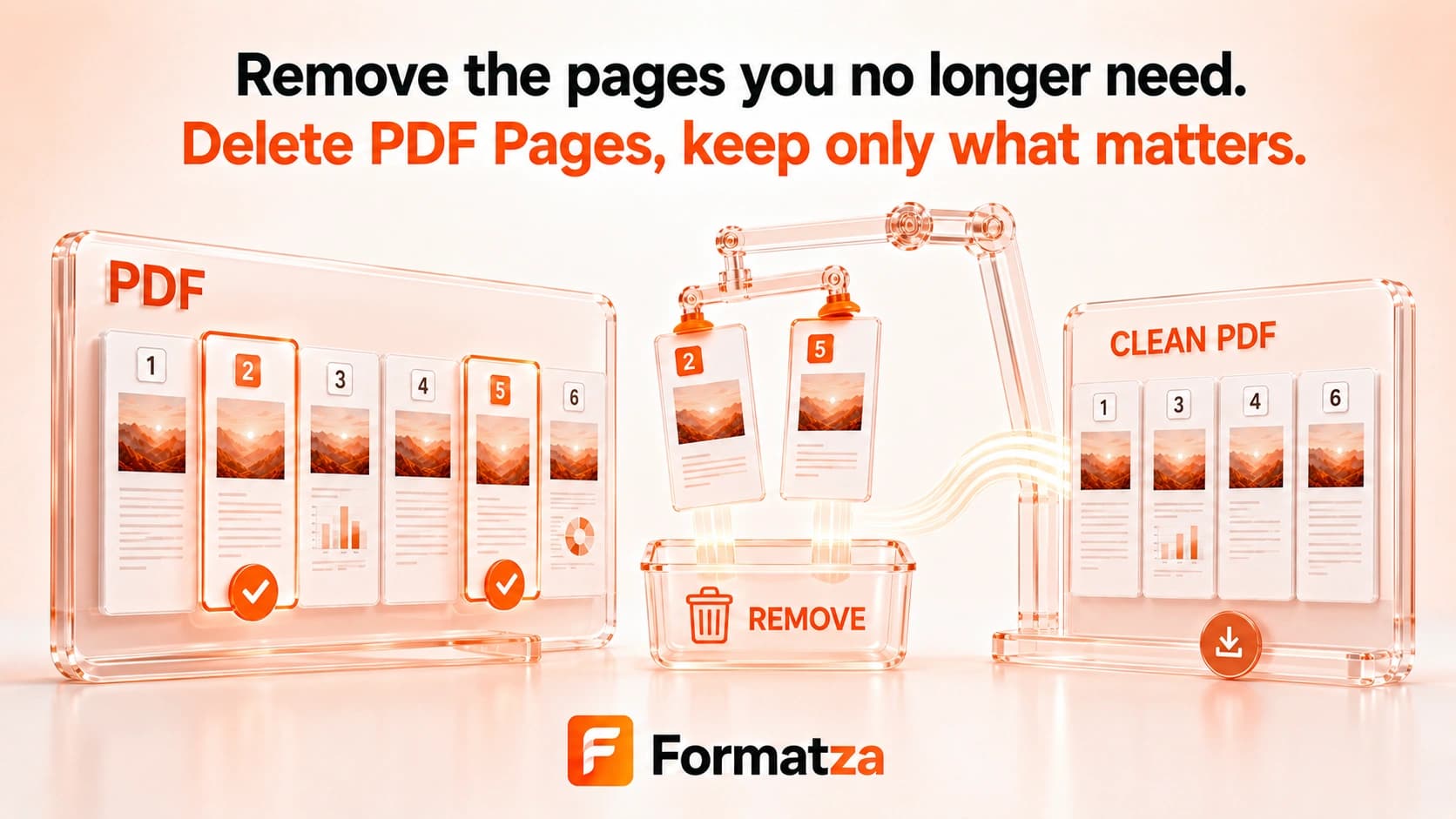
Remove one page range or selected individual pages from a PDF in your browser. Formatza saves the remaining pages as a new PDF and prevents deletion when no page would remain.
Steps
How it works
- Choose one PDF file.
- Select Range or Individual pages.
- Enter the valid pages you want to remove.
- Delete the selected pages and download the new PDF.
Highlights
Key features
- Removes multiple pages from one PDF.
- Supports one continuous range or comma-separated individual pages.
- Validates selections against the document page count.
- Prevents every page from being removed.
- Creates a separate file with a -pages-deleted.pdf name.
Use cases
Common uses
- Remove blank or unwanted pages from a PDF.
- Delete several known page numbers at once.
- Remove one continuous section from a document.
- Create a shorter sharing copy while keeping the original.
Notes
Limitations to know
- Selection uses page numbers rather than clickable thumbnails or a visual preview.
- Only one PDF can be processed at a time.
- The tool removes complete pages and does not edit text or images inside them.
- Deleting every page is not allowed, and deleted pages cannot be restored after export without starting again from the original.
- Bookmarks, page labels, internal links, forms, and outlines may be affected, and resaving can invalidate digital signatures.
FAQ
Frequently asked questions
Can I delete multiple PDF pages at once?
Yes. Select Individual pages for comma-separated page numbers or Range for one continuous page range.
Can I enter a page range?
Yes. Choose Range, then enter valid start and end page numbers.
Can deleted pages be restored before download?
You can change the selection and process again before downloading. After export, use the unchanged original PDF to restore removed pages.
Can every page be removed?
No. The tool requires at least one page to remain in the output PDF.
What happens to bookmarks and links?
Advanced structures such as bookmarks, page labels, internal links, forms, and outlines are not guaranteed to remain correct after pages are removed.
How is this different from Split PDF?
Delete PDF Pages removes specified pages and keeps the rest. Split PDF creates new outputs from pages you choose to extract.