
Split Excel Sheets
Split Excel worksheets into separate files.
Type to search tools. Use the up and down arrow keys to move through results, Enter to open a result, and Escape to clear the search.
Split Excel worksheets into separate files.
Related tools
Ready tools are shown first.
Excel to CSV
Convert Excel spreadsheets to CSV files.
CSV to Excel
Convert CSV files to Excel spreadsheets.
Excel to JSON
Convert Excel spreadsheets to JSON data.
JSON to Excel
Convert JSON data to Excel spreadsheets.
Excel to HTML
Convert Excel sheets to HTML tables.
HTML Table to Excel
Convert HTML tables to Excel spreadsheets.
Tool guide
Free Online Excel Sheet Splitter
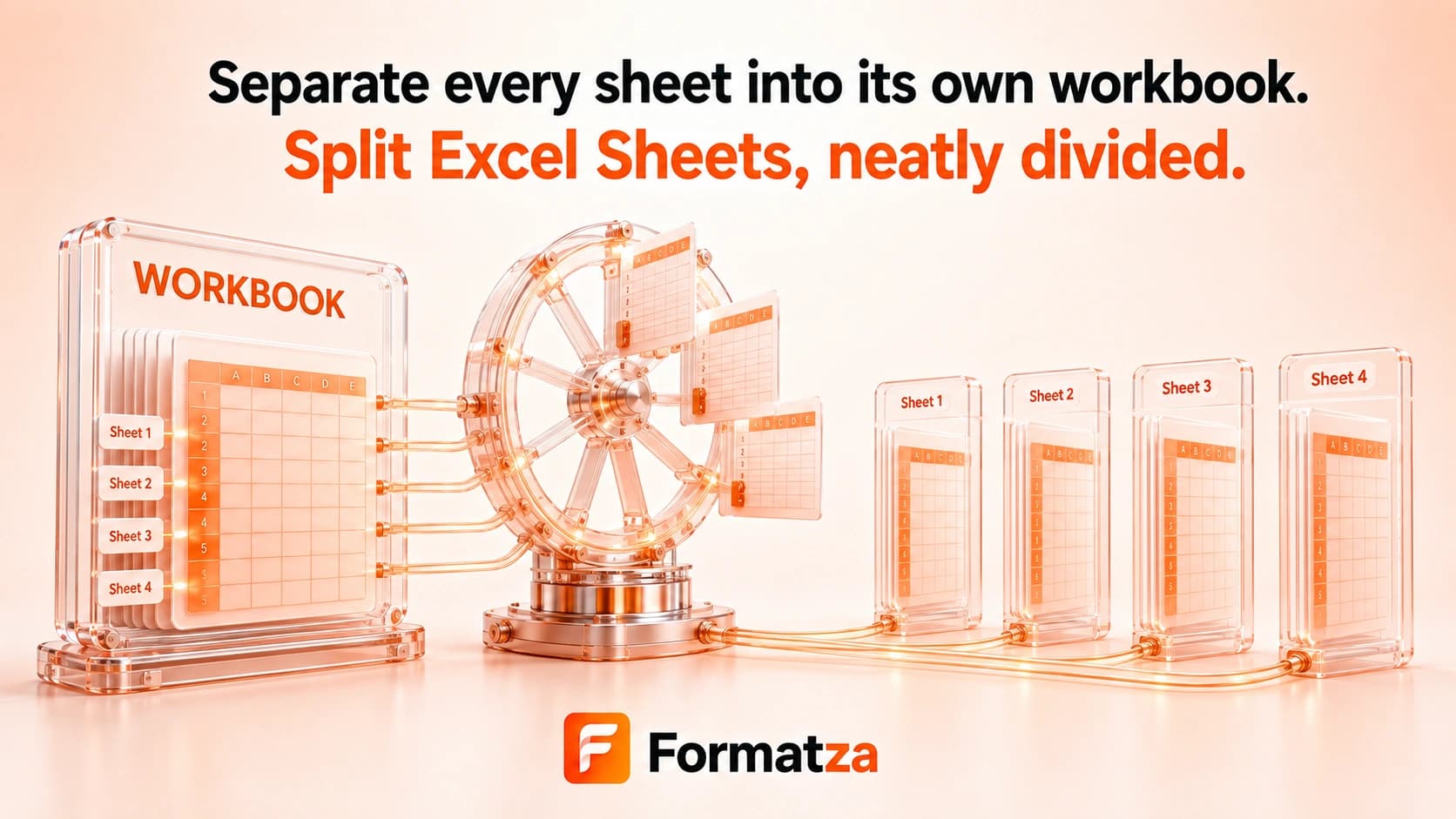
Split one XLS or XLSX workbook into separate XLSX files, with one output for every worksheet found in the workbook. This browser-first splitter is designed for worksheet data extraction rather than complete duplication of every advanced Excel feature.
Steps
How it works
- Choose one supported XLS or XLSX workbook.
- The tool reads the workbook and identifies its worksheet names.
- Split every listed worksheet into its own XLSX workbook.
- Download each generated worksheet file individually.
Highlights
Key features
- Creates one XLSX output for each worksheet listed by the workbook parser.
- Processes worksheets in their original workbook order.
- Builds readable output filenames from the source workbook and worksheet names.
- Reconstructs each output from the supported cell values in that worksheet.
- Runs as a single-workbook browser-first workflow.
Use cases
Common uses
- Separate a multi-sheet report into individual spreadsheet files.
- Share one worksheet file per team, month, or data group.
- Extract tabular worksheet values for separate processing.
- Break a workbook into smaller files for supported data workflows.
Notes
Limitations to know
- Every listed worksheet is exported; there is no control for selecting only certain sheets.
- Outputs are downloaded individually rather than together in a ZIP, and multiple source workbooks are not supported.
- Worksheets are rebuilt from available row values, so formulas, styles, number formats, merged cells, dimensions, links, comments, charts, images, macros, and other advanced features may be lost.
- Cross-sheet formulas and external references are not preserved as working references after sheets are separated.
- Hidden sheets may be listed by the parser and exported, but hidden or very-hidden state is not preserved in the new workbook.
FAQ
Frequently asked questions
Does each worksheet become a separate file?
Yes. The tool creates one XLSX download for every worksheet name returned by the workbook parser.
Can I choose which sheets to split?
No. The current splitter exports every listed worksheet in the workbook.
Are hidden worksheets included?
A hidden sheet can be included when the parser lists it, but the output does not retain the original hidden or very-hidden state.
Are formulas and formatting preserved?
No complete preservation is promised. Outputs are reconstructed from supported cell values, so formulas, styling, merged cells, charts, and workbook-level features may be lost.
What happens to cross-sheet formulas?
They cannot remain reliable working references because each output contains only one rebuilt worksheet.
Are all split sheets downloaded as a ZIP?
No. Each generated XLSX file has its own download action.