
Remove Duplicate Rows
Remove duplicate rows from spreadsheet data.
Type to search tools. Use the up and down arrow keys to move through results, Enter to open a result, and Escape to clear the search.
Remove duplicate rows from spreadsheet data.
Related tools
Ready tools are shown first.
Excel to CSV
Convert Excel spreadsheets to CSV files.
CSV to Excel
Convert CSV files to Excel spreadsheets.
Excel to JSON
Convert Excel spreadsheets to JSON data.
JSON to Excel
Convert JSON data to Excel spreadsheets.
Excel to HTML
Convert Excel sheets to HTML tables.
HTML Table to Excel
Convert HTML tables to Excel spreadsheets.
Tool guide
Remove Duplicate Rows from Excel Online
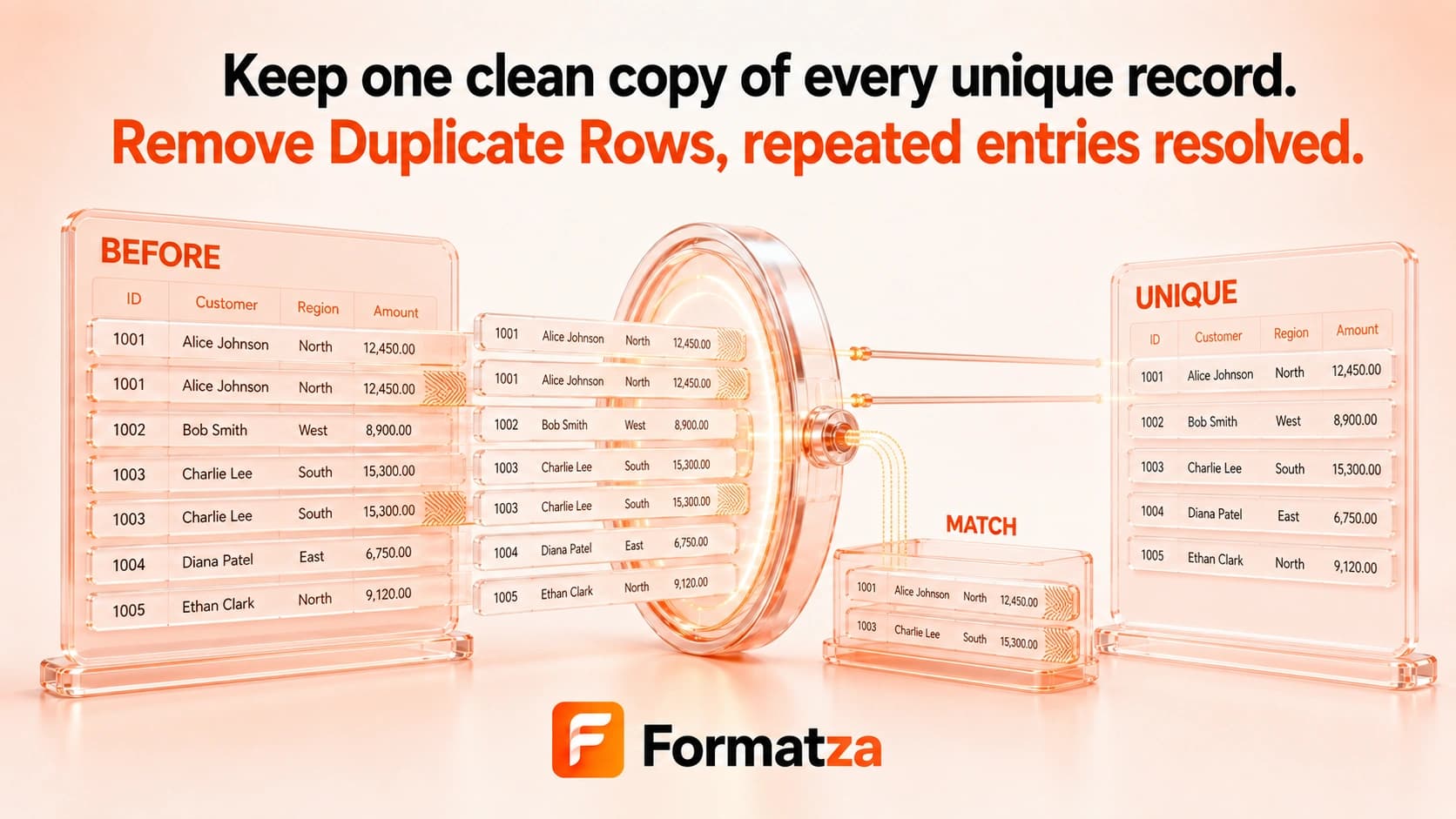
Deduplicate one selected Excel worksheet by comparing every parsed value in each row. The comparison trims leading and trailing whitespace, is case-sensitive, keeps the first matching row, and removes later exact normalized matches.
Steps
How it works
- Choose one XLS or XLSX workbook.
- Select the worksheet whose rows you want to compare.
- Compare normalized full-row values and remove repeated matches.
- Download the rebuilt XLSX workbook and review the removed-row count.
Highlights
Key features
- Compares complete rows rather than one selected key column.
- Trims leading and trailing whitespace from each parsed cell before comparison.
- Uses case-sensitive string comparison and keeps the first matching row.
- Treats a numeric value and equivalent text as the same after string conversion.
- Reports how many repeated rows were removed from the selected sheet.
Use cases
Common uses
- Remove repeated records from a flat worksheet table.
- Clean exact duplicate rows from imported spreadsheet data.
- Keep the first occurrence of repeated full-row values.
- Prepare a selected sheet for analysis or export.
Notes
Limitations to know
- Only one selected worksheet is deduplicated; all-sheet and multiple-workbook batch processing are unavailable.
- Every cell in the normalized row participates in comparison; selected-column, fuzzy, or similarity matching is not supported.
- Comparison is case-sensitive, trims only outer whitespace, and does not collapse repeated internal spaces.
- The header row is not specially protected, blank rows collapse to one, and the first matching row is retained.
- Worksheets are rebuilt from parsed values, so formulas, styles, merged cells, hidden-row state, charts, images, macros, and advanced workbook features may be lost.
FAQ
Frequently asked questions
How are duplicate rows identified?
The tool converts every parsed cell to a trimmed string and compares the resulting complete row exactly.
Is duplicate comparison case-sensitive?
Yes. For example, Formatza and formatza are treated as different values.
Are extra spaces ignored?
Leading and trailing whitespace is ignored, but repeated spaces inside a value are not normalized.
Which duplicate row is kept?
The first normalized row is kept and later matching rows are removed.
Can I compare only selected columns?
No. The current tool compares the complete row.
Is the header row always protected?
No special header rule is applied; it participates in the same full-row comparison as other rows.